
Manage admin access
Learn how to view and manage users with Admin access.
Step 1
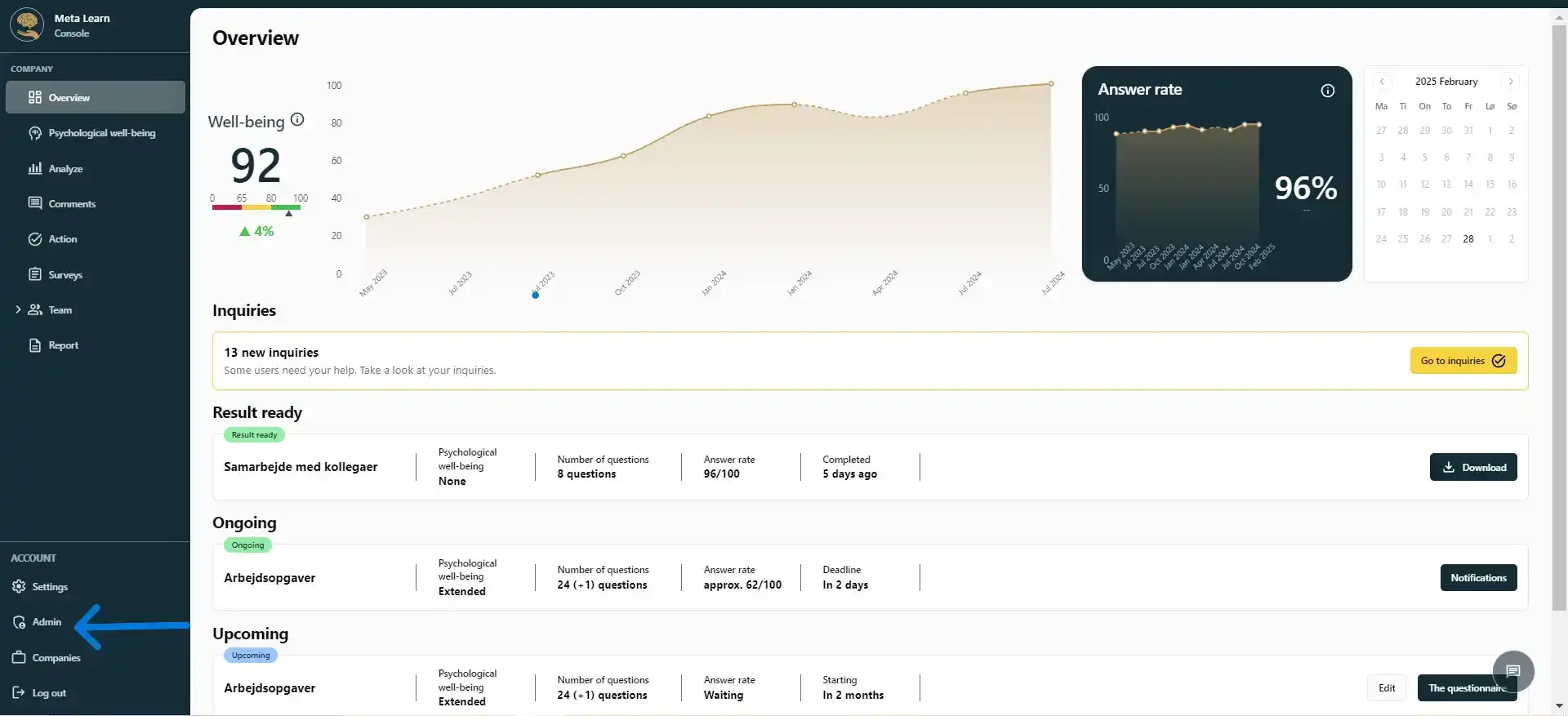
Start by clicking “Admin”.
Step 2
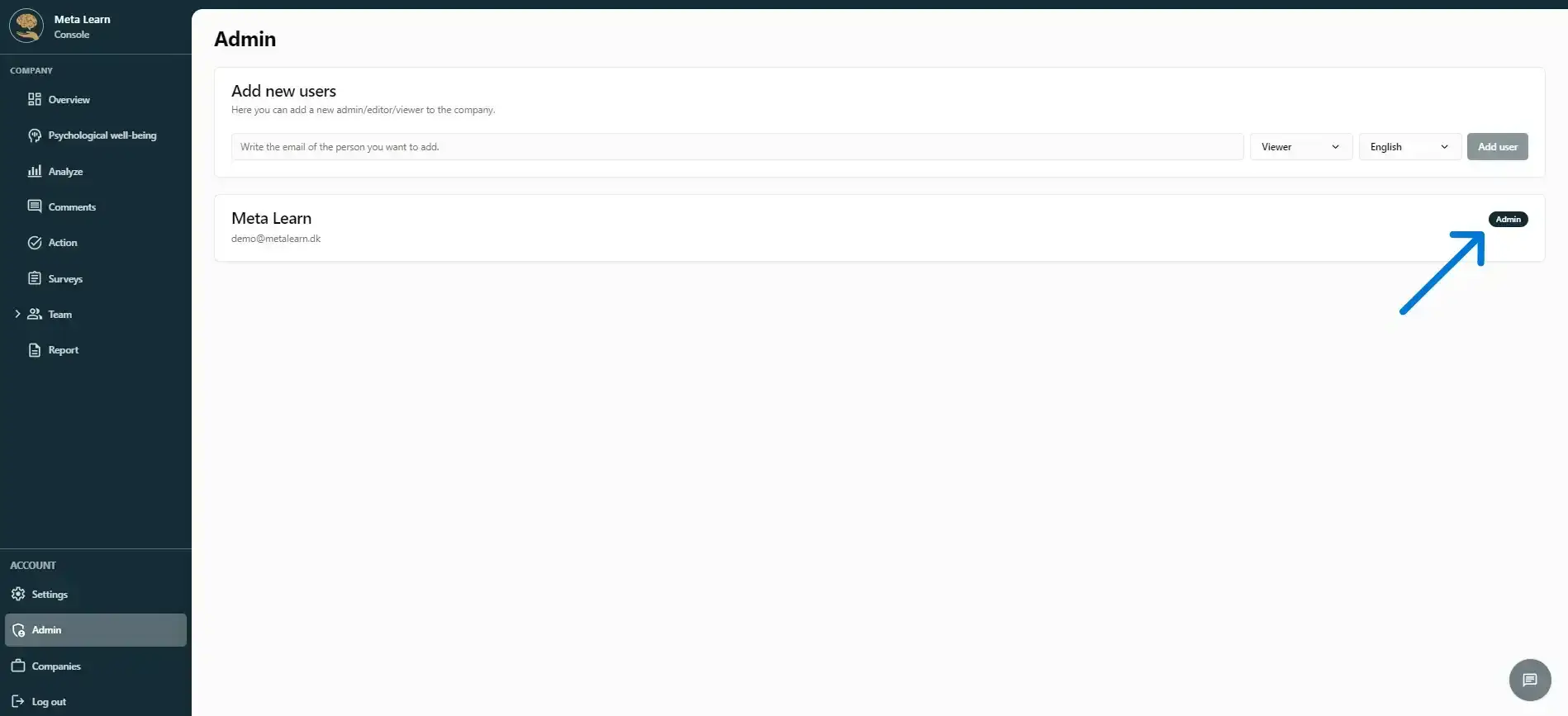
Here you can see who has Admin access to the platform by looking for the small badge on the right.
Step 3
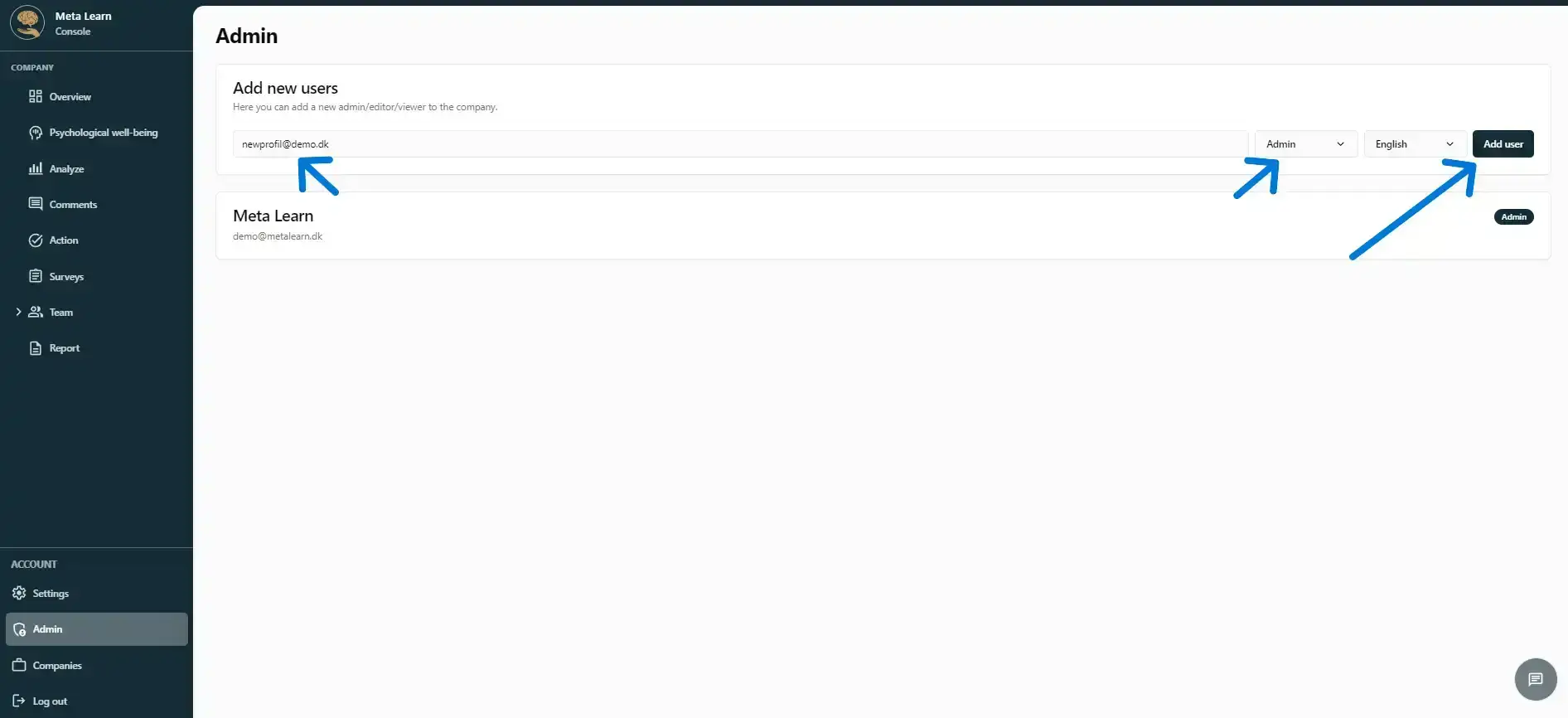
If you want to give additional users access to the platform, add their email address, choose their access level, and then click “Add user” to invite them to the platform.
Step 4
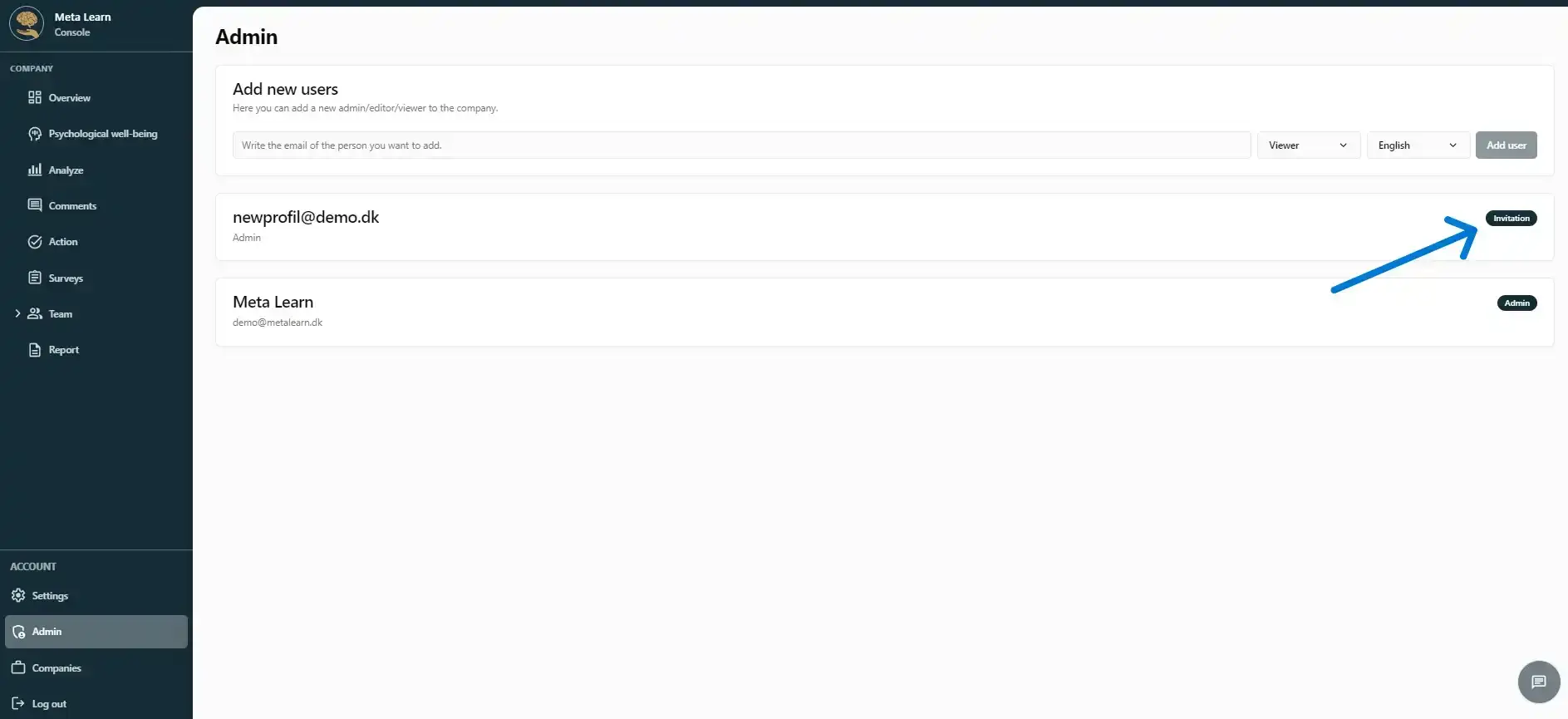
After you add a new admin user, they need to confirm the invitation by email before they can access the platform.
Keep in mind that users with Admin access can remove, delete and add content as they see fit. Be mindful of who you give Admin rights to.
Once the new user has been invited, you’ll see their profile created, with “Invitation” displayed in the top-right corner next to their email address.
Related guides
Understand the settings in Meta Learn
A quick overview of the platform’s settings and features.
View guideSwitch between companies
View and switch between the companies you have access to. For larger companies only.
View guideImport employees in under 1 minute
Connect your employee list to Meta Learn via an integration or manual import, and get started right away.
View guide