
Survey Checker
Use the Questionnaire Checker to review your questionnaire before sending it out. Quickly and easily get an overview of the areas it covers, so you can tailor it to your wishes and needs.
Step 1
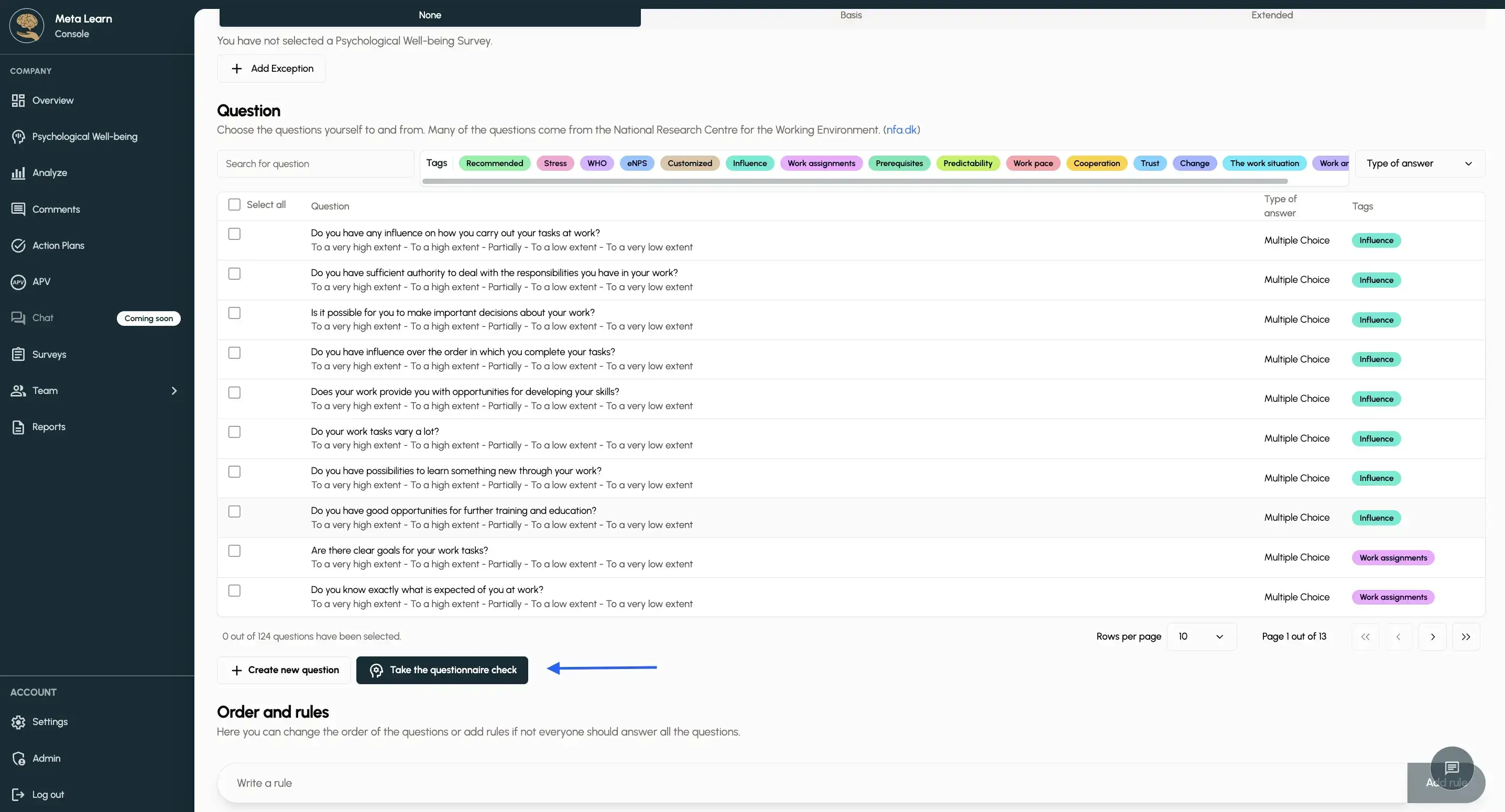
When you create or edit a questionnaire, you can click “Start the questionnaire checker.”
Step 2
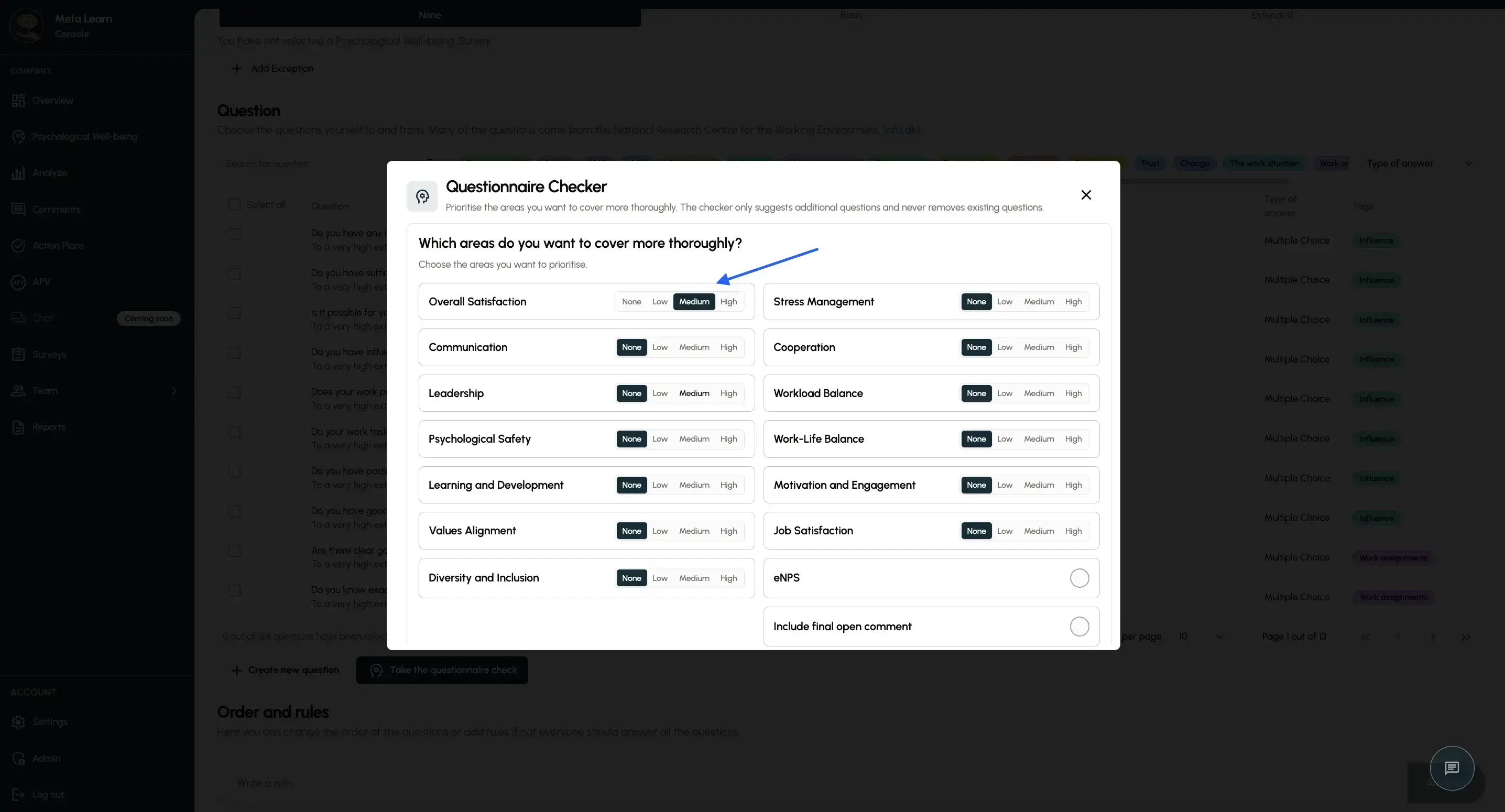
Choose how much each topic should be covered. You can choose between “None”, “Low”, “Medium” and “High”. You can also add an eNPS question and/or an open-ended question at the end.
Step 3
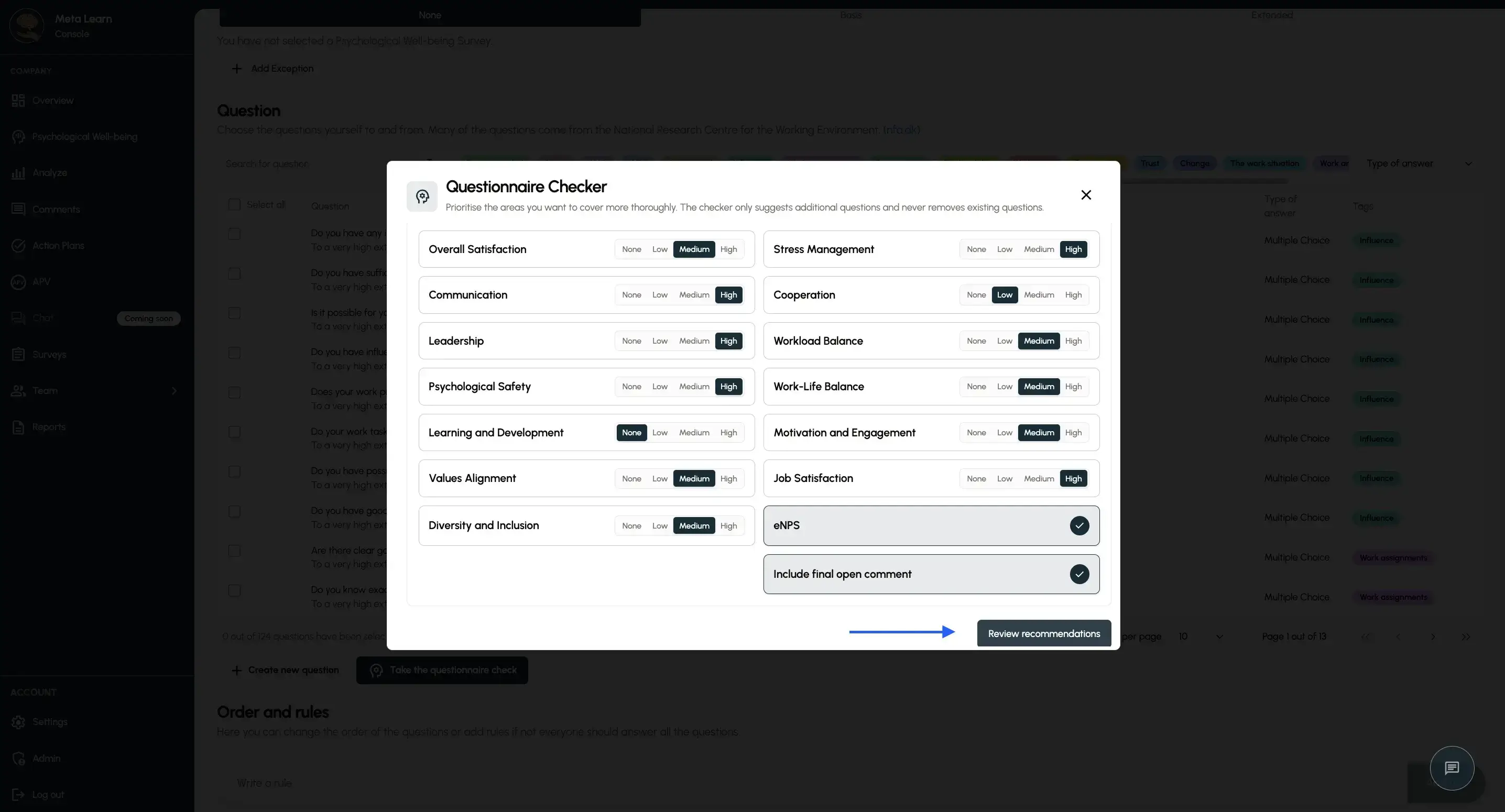
Once you’ve gone through all the topics, continue by tapping “Review recommendations”.
Step 4
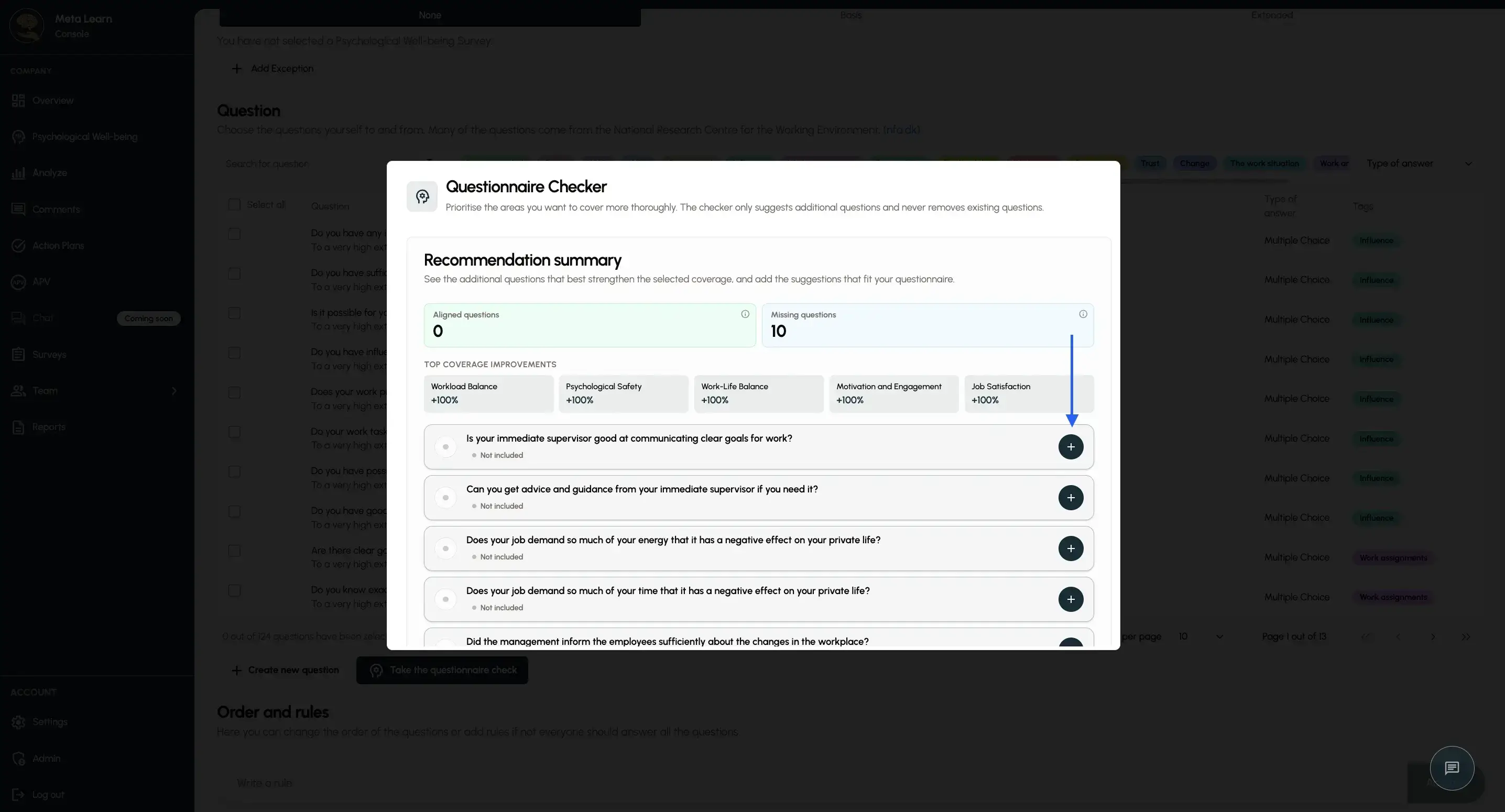
Below, you’ll see all the recommended questions based on your preferences. You can now add any of the questions you’d like to include in the questionnaire.
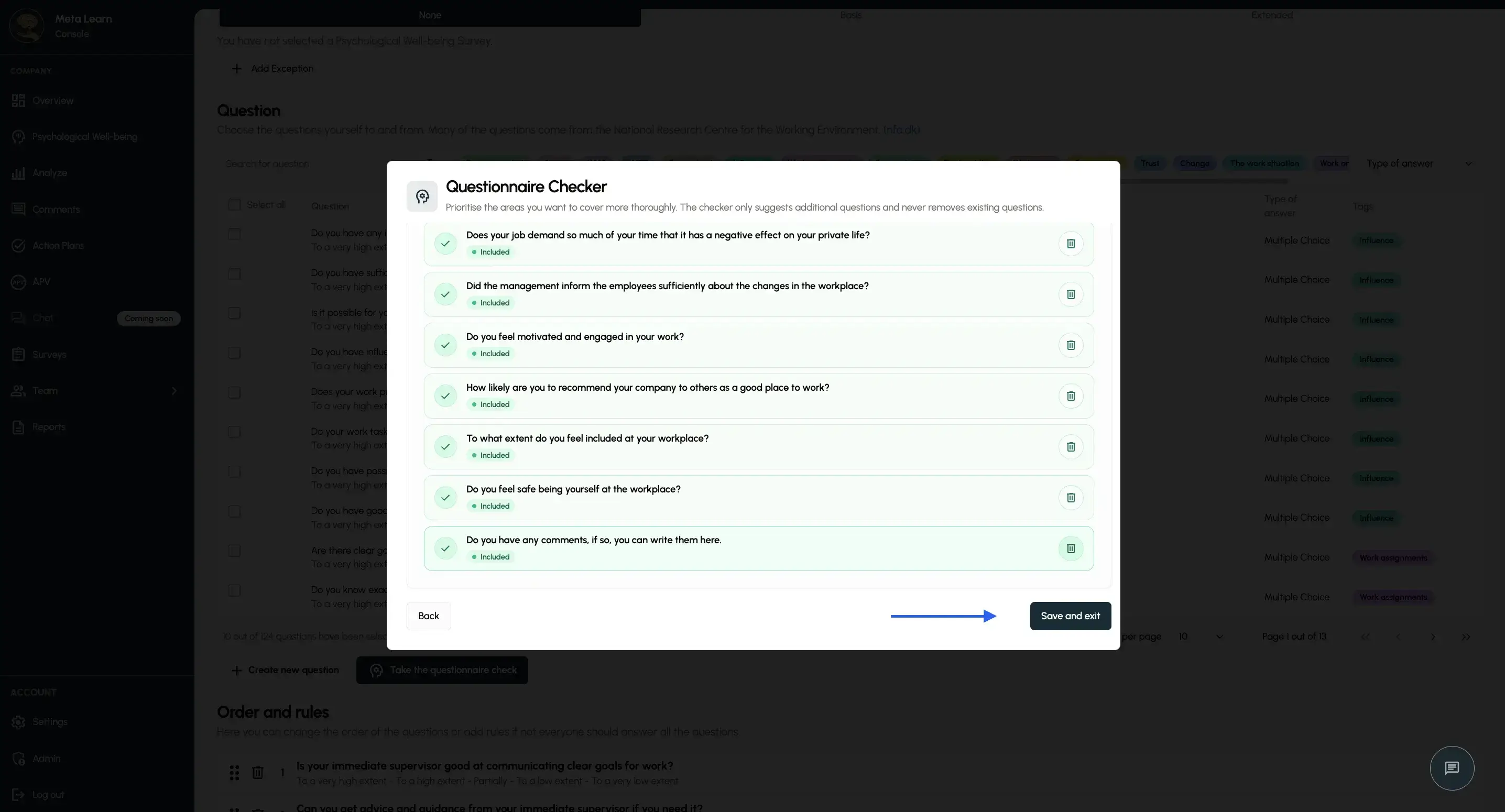
Step 5
Once you’ve added the questions to the questionnaire, tap “Save and finish”.
Congratulations!
You’ve now added your questions to the questionnaire, so you can be sure that your upcoming questionnaire covers the topics you want.
Related guides
Do your own research
Use Meta Learn’s templates or create a custom survey that fits your business perfectly.
View guideUnderstand psychological well-being
Learn how to use and interpret your employees’ well-being surveys, and see what you can do based on the results.
View guideNavigate the analysis
Learn how to use and navigate the analysis, and understand what the different metrics tell you.
View guide