
Create your own survey
Use Meta Learn’s existing questionnaire templates or customize them to fit your company perfectly.
Step 1
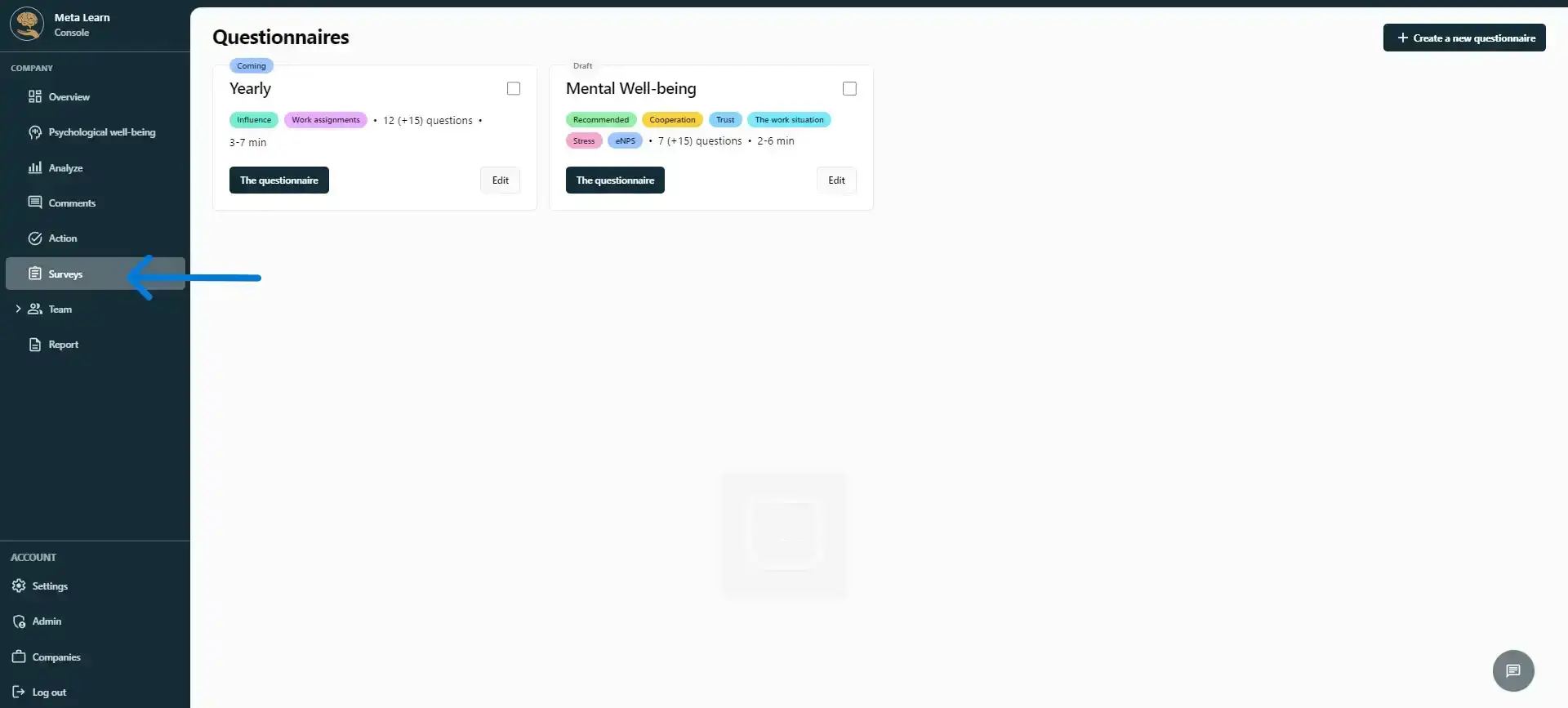
Start by clicking on “Surveys.”
Step 2
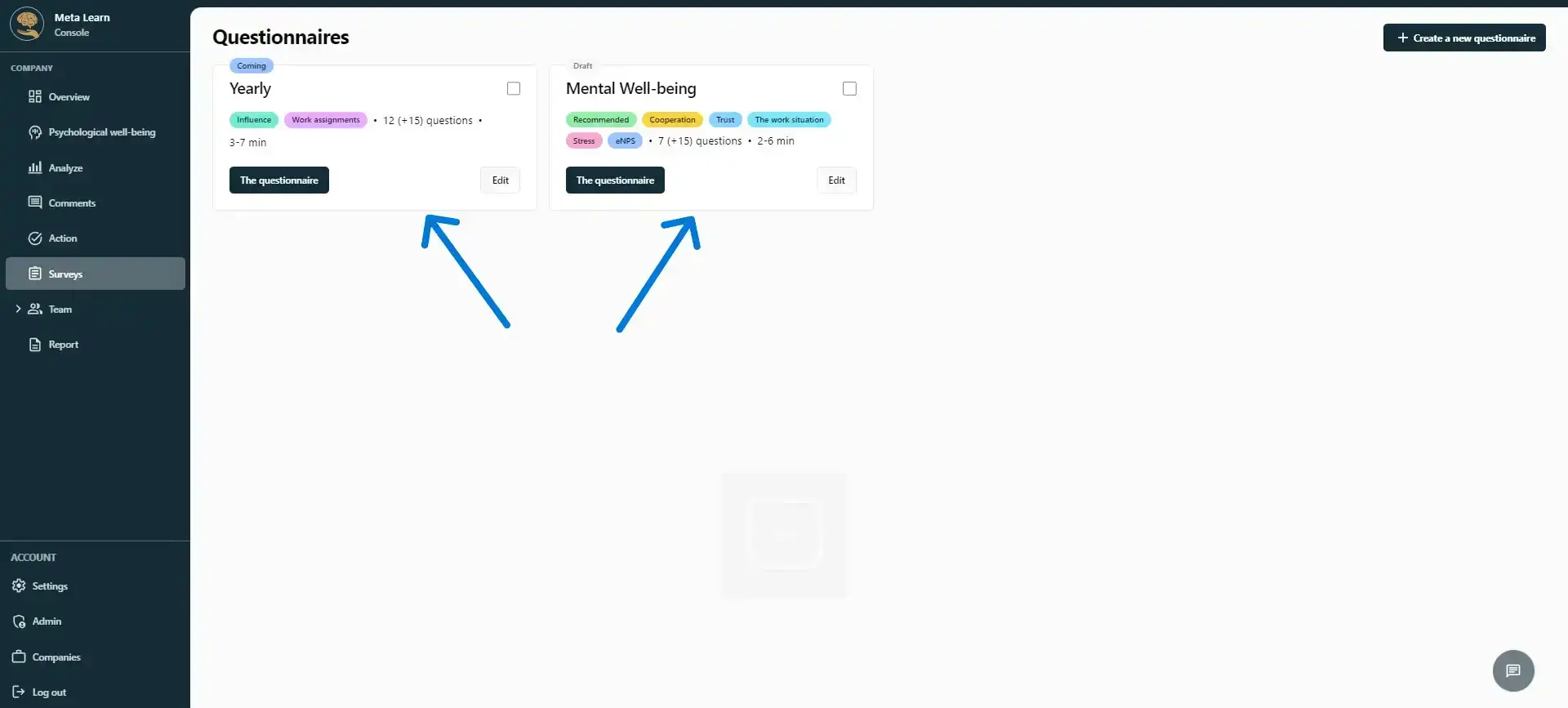
Here you can see the surveys you’ve created. In the example below, you can see that the company has two ongoing surveys: “Annual” and “Mental Wellbeing.”
Step 3
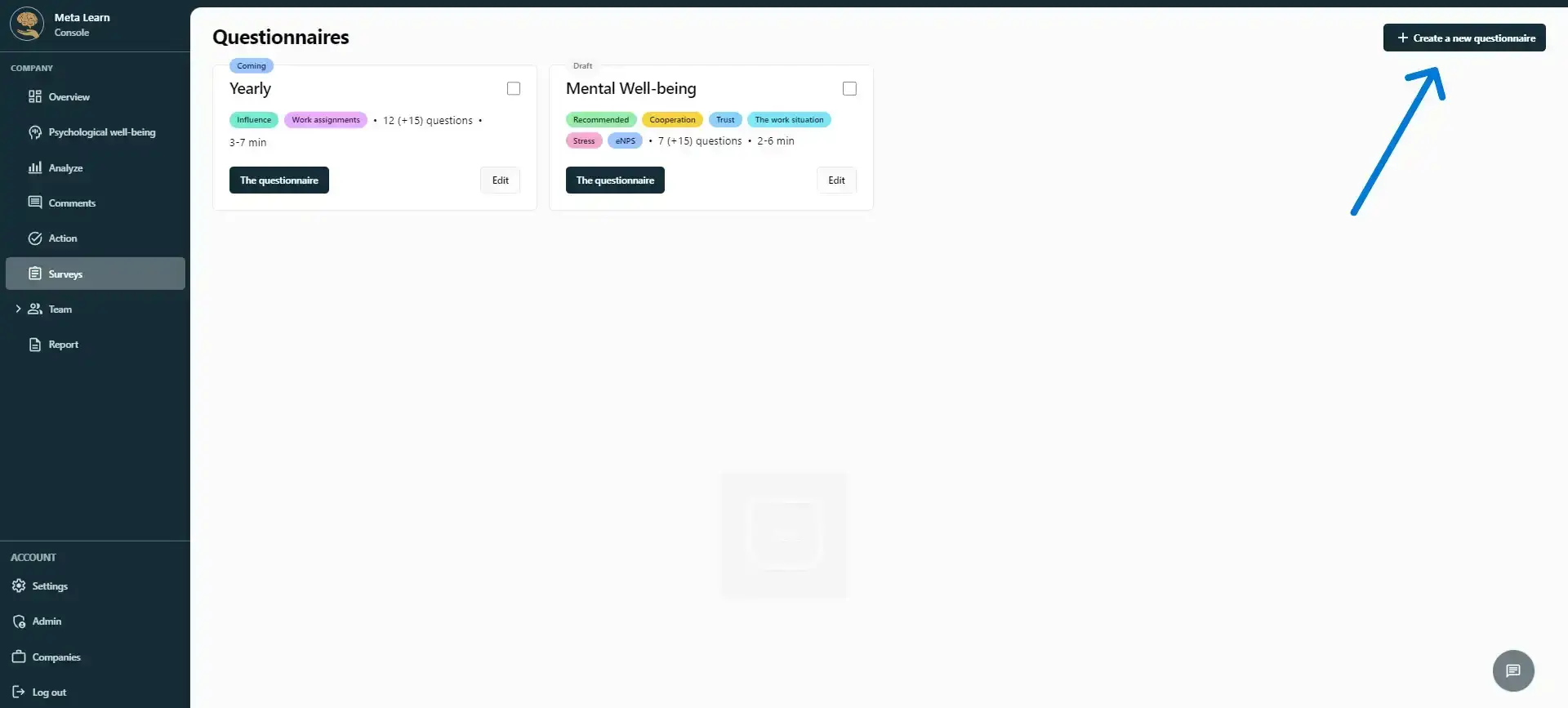
If you want to create a new survey, click “Create a new questionnaire”.
Step 4
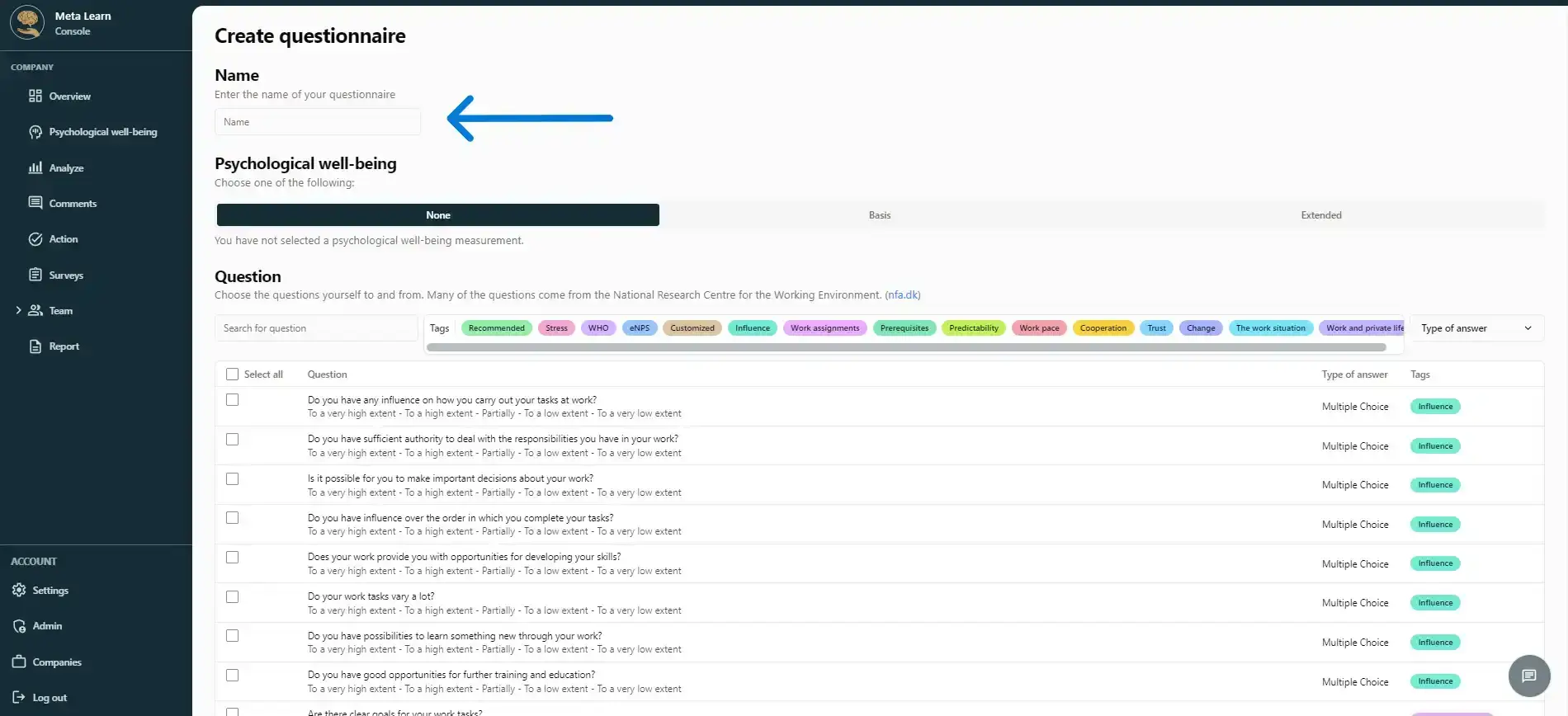
First, you need to name your survey. We recommend describing your survey as accurately as possible, as the name will be shown to your employees when they complete the questionnaire.
Step 5
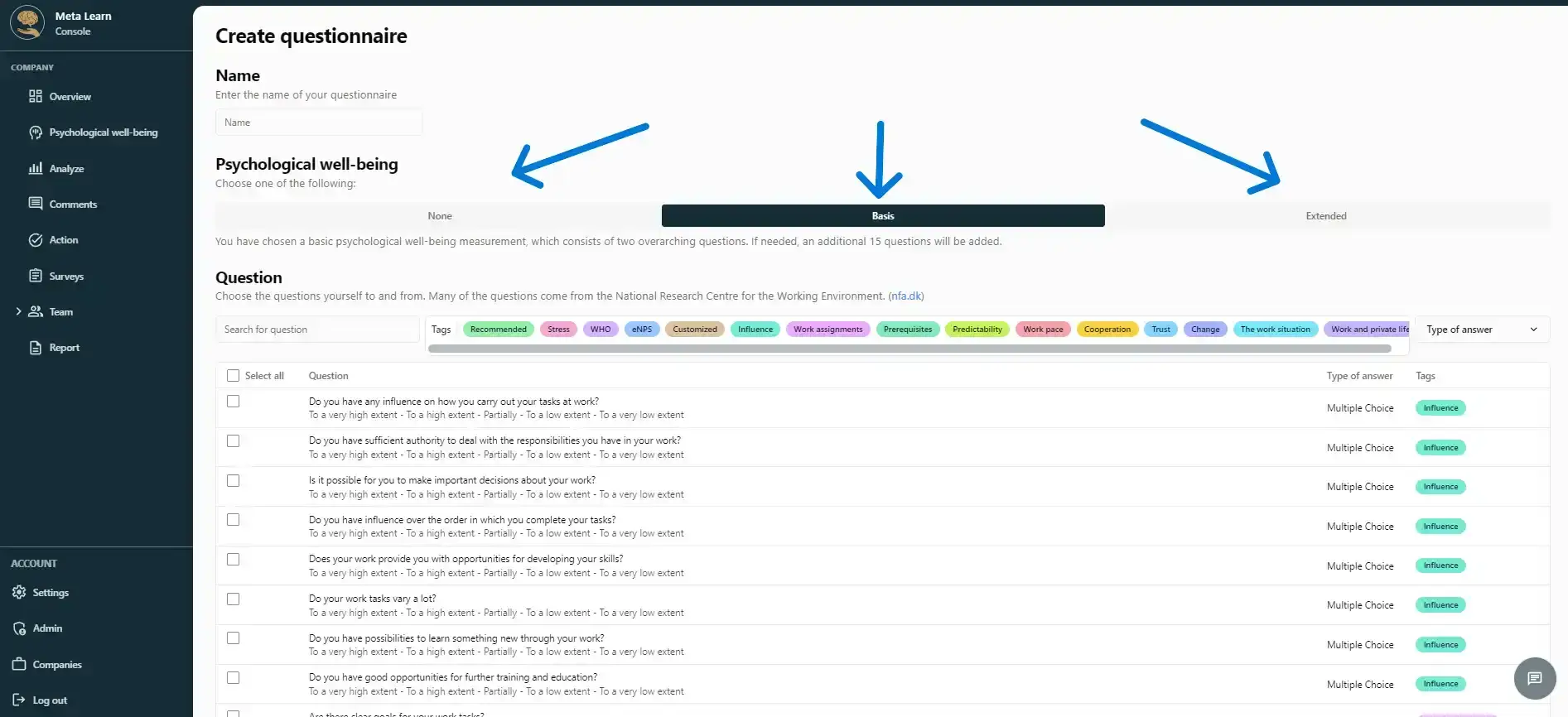
The next step is to decide whether you want to enable the psychological well-being assessment. You can choose between: None, Basic, or Advanced.
Step 6
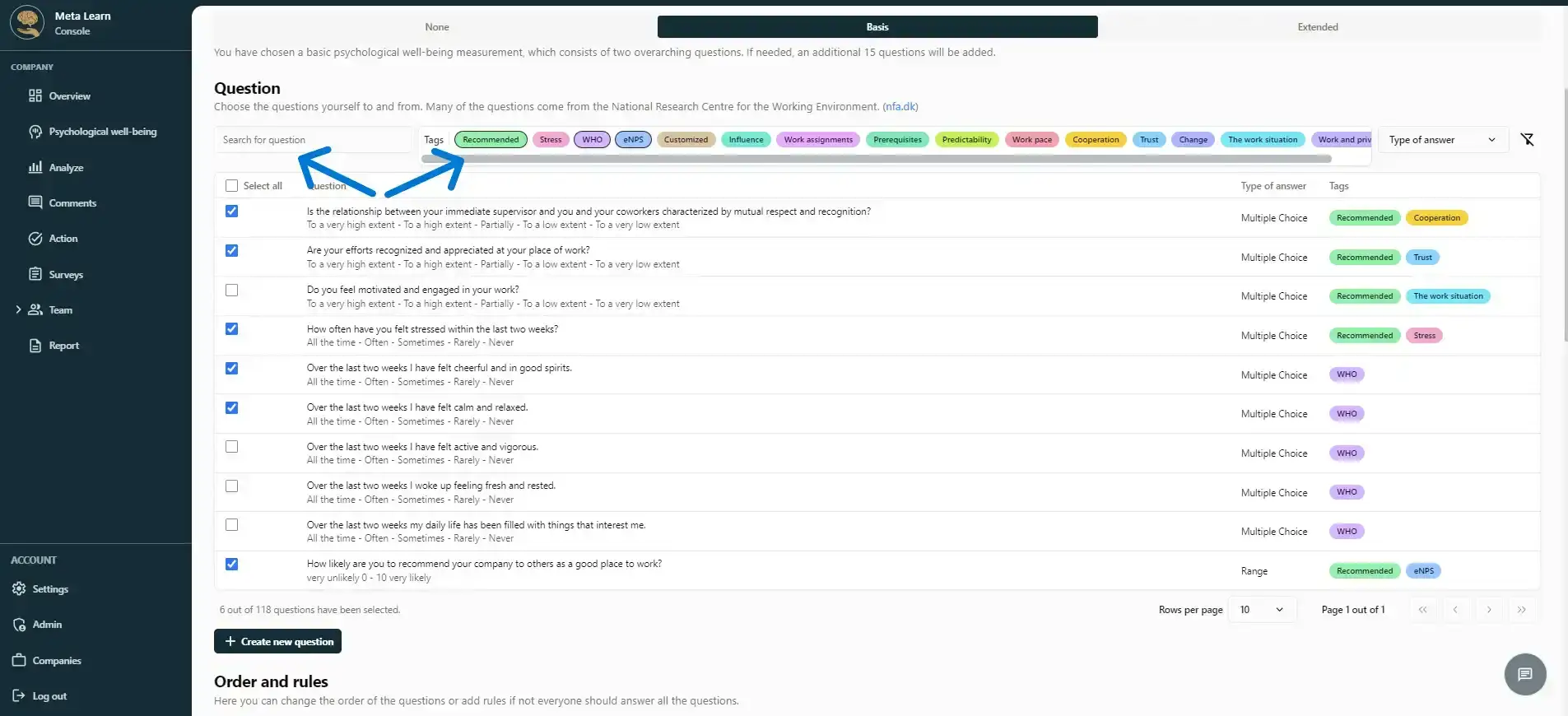
Now choose the questions for your survey. You can use our search function or click different tags to find relevant questions. The available questions have been approved and developed by the "National Research Centre for the Working Environment" in Denmark.
Step 7
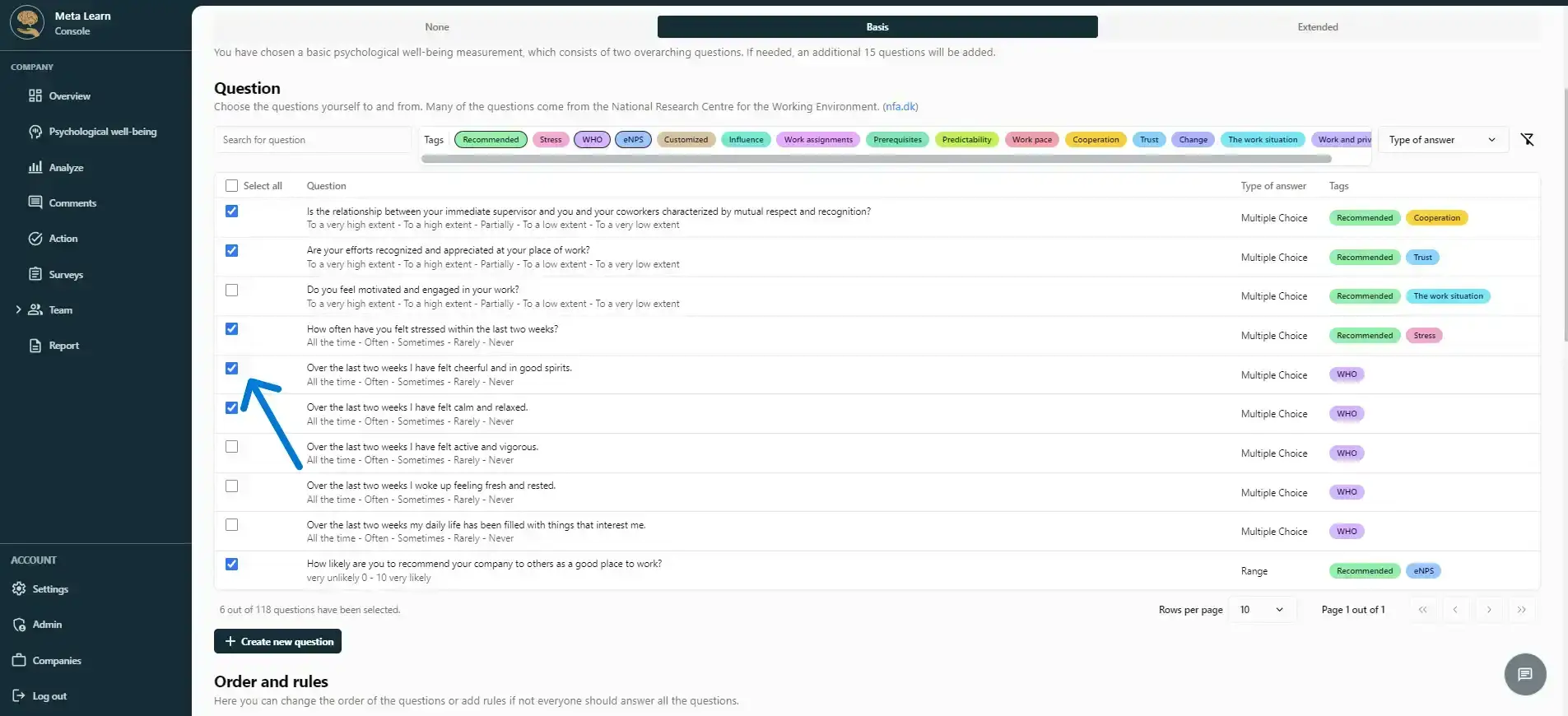
Click the questions you want to include in your survey to select them.
Step 8
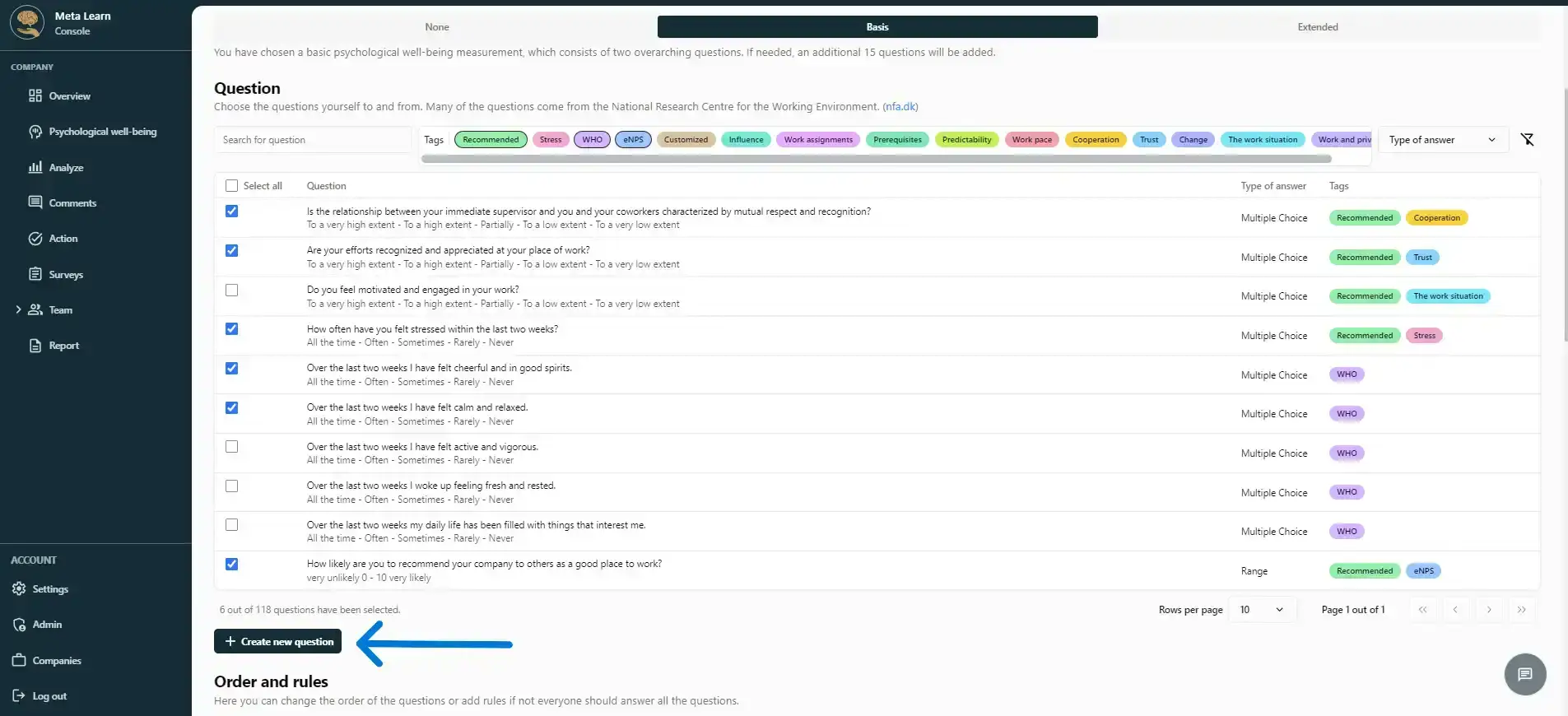
If you want to create your own question, you can always click “Create new question.”
Step 9
Now enter the question you want to add to your survey. Once you’ve entered the question, click “Continue”.
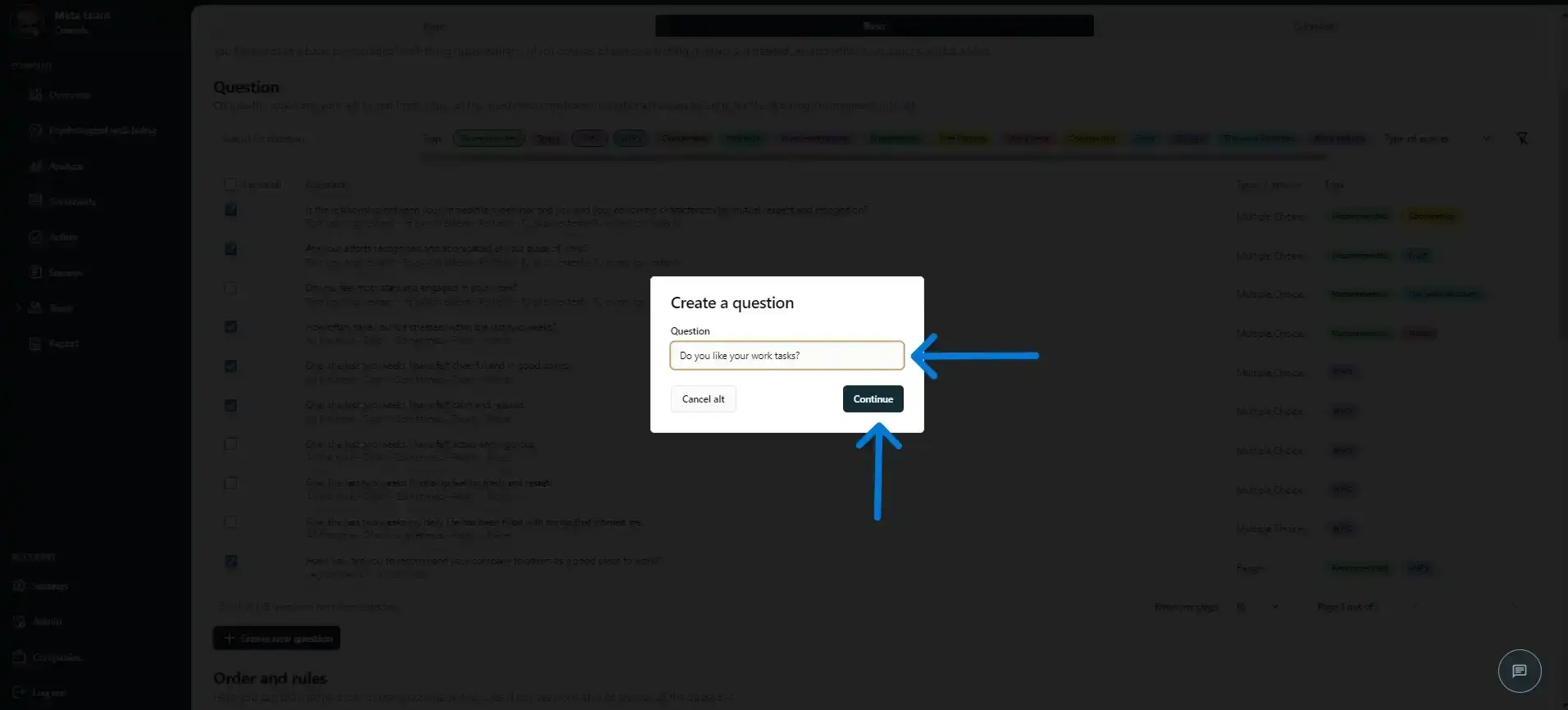
Step 10
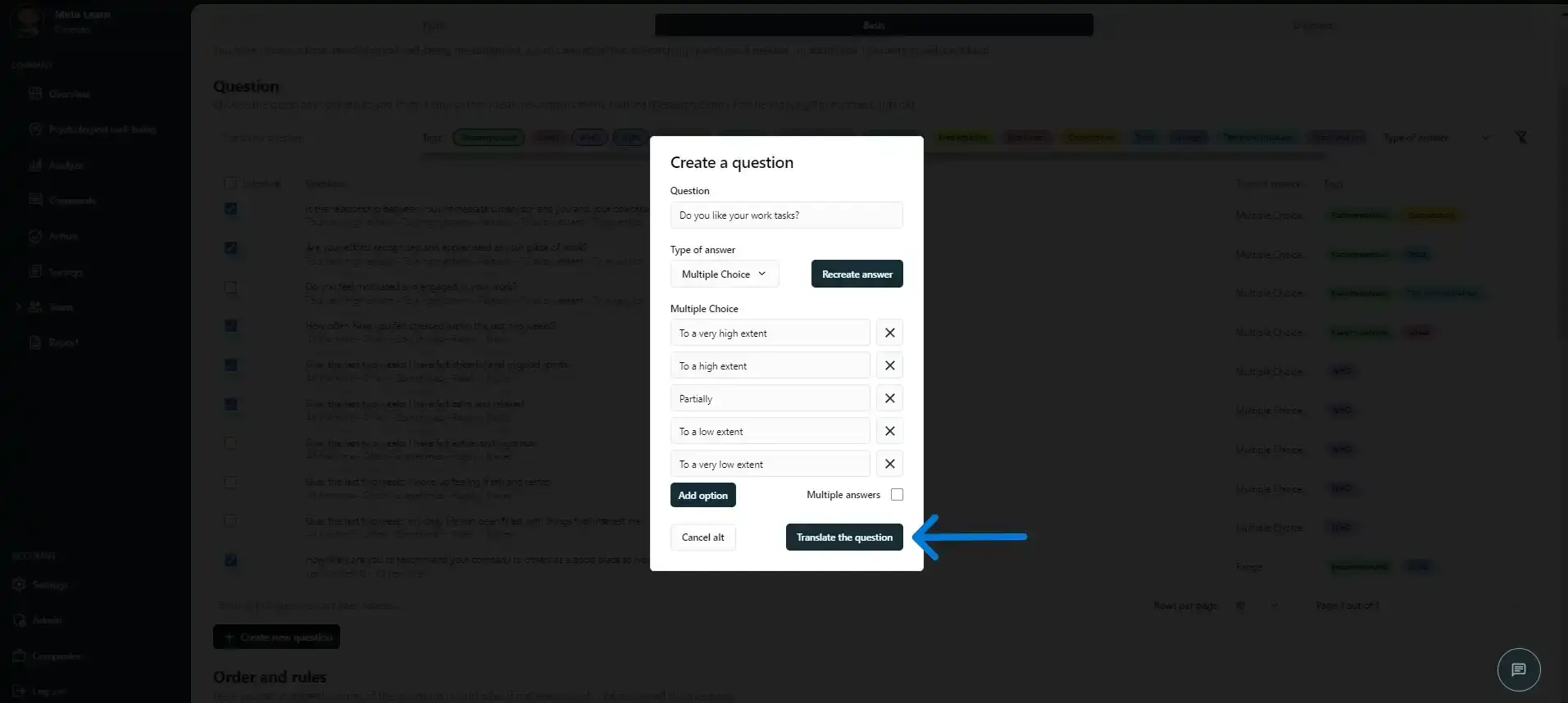
Our AI will automatically generate the best answer options for your question. You can always change the answer options or answer type to suit your needs.
Once you’ve approved the answer options, click “Translate question”.
Step 11
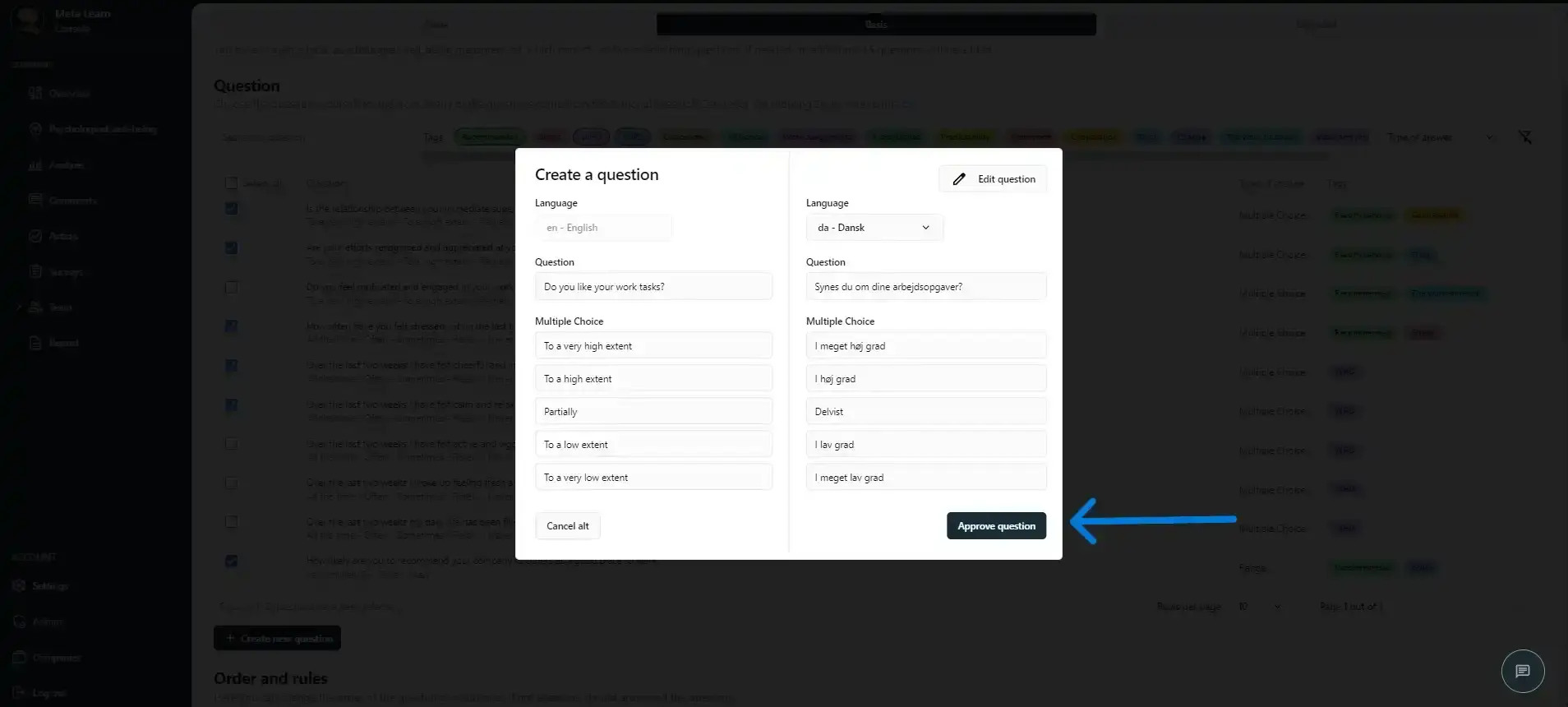
Our AI automatically translated your question and answer options into several languages, so your employees receive them in their preferred language.
Once you’ve approved the translations, click “Approve questions”.
Step 12
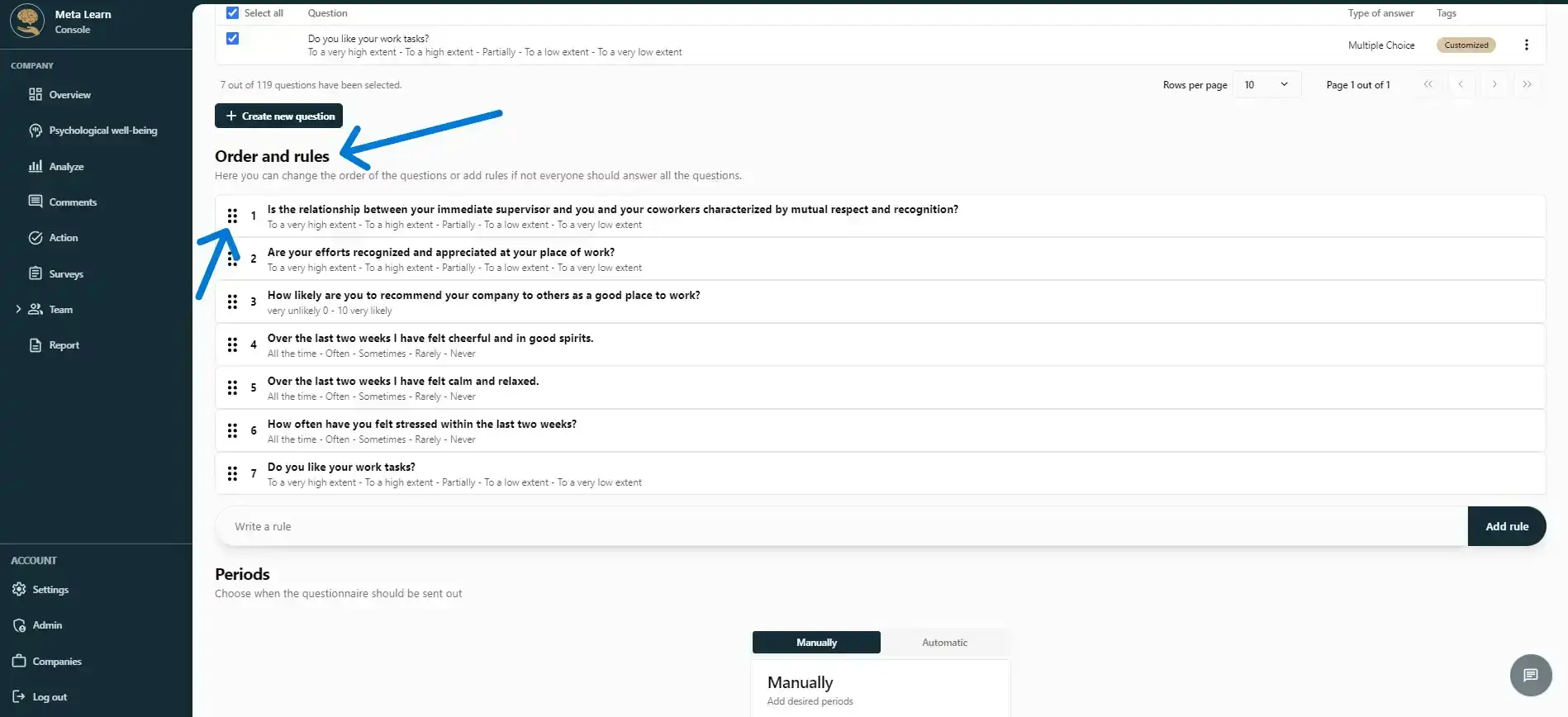
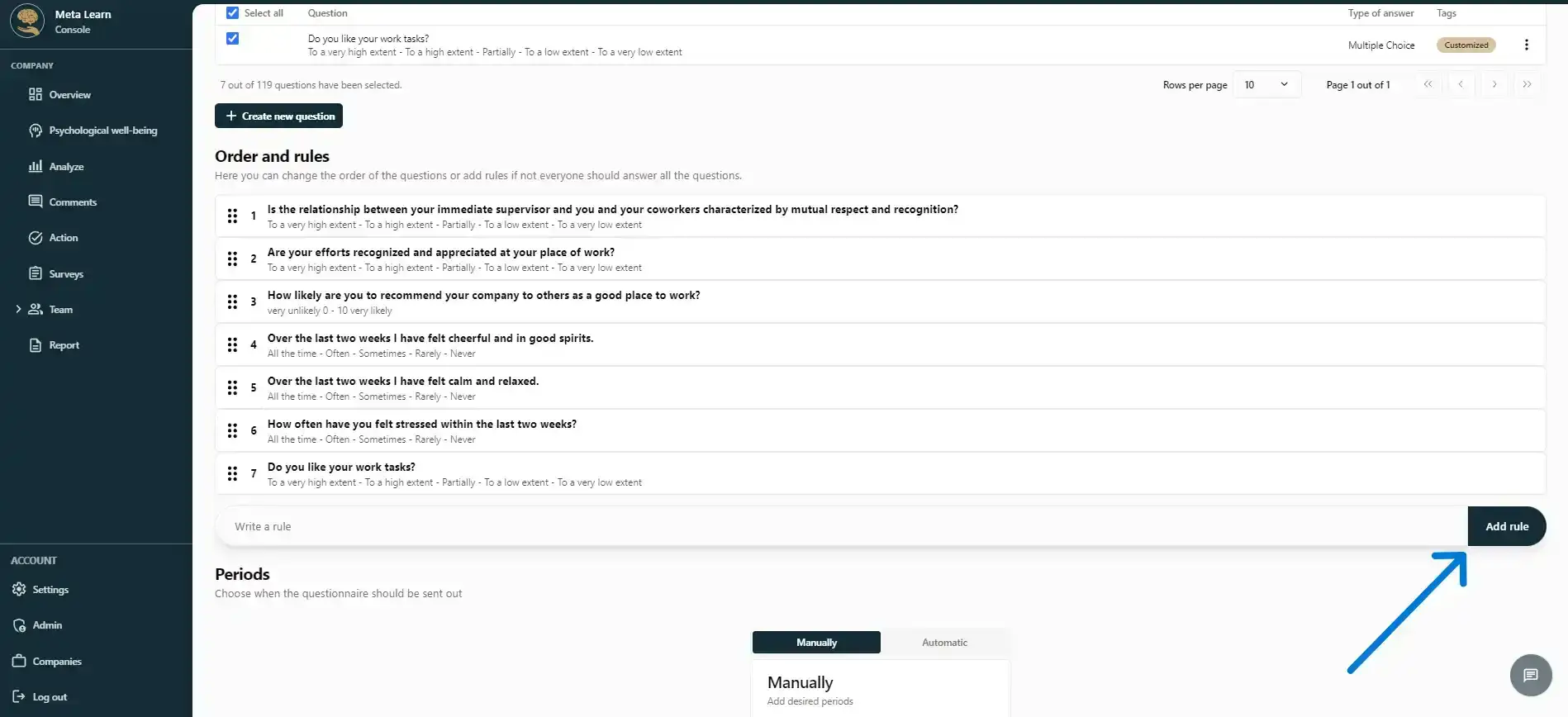
Once you’ve selected all the questions, you can change their order by dragging and dropping them.
Step 13
If you want to add a rule to your study, you can write it here. When you click “Add rule”, our AI will understand the rule and apply it to the questionnaire.
For example, you may want to show certain questions only when a specific answer is given. Just describe the rule you want, and our AI will handle the rest.
Step 14
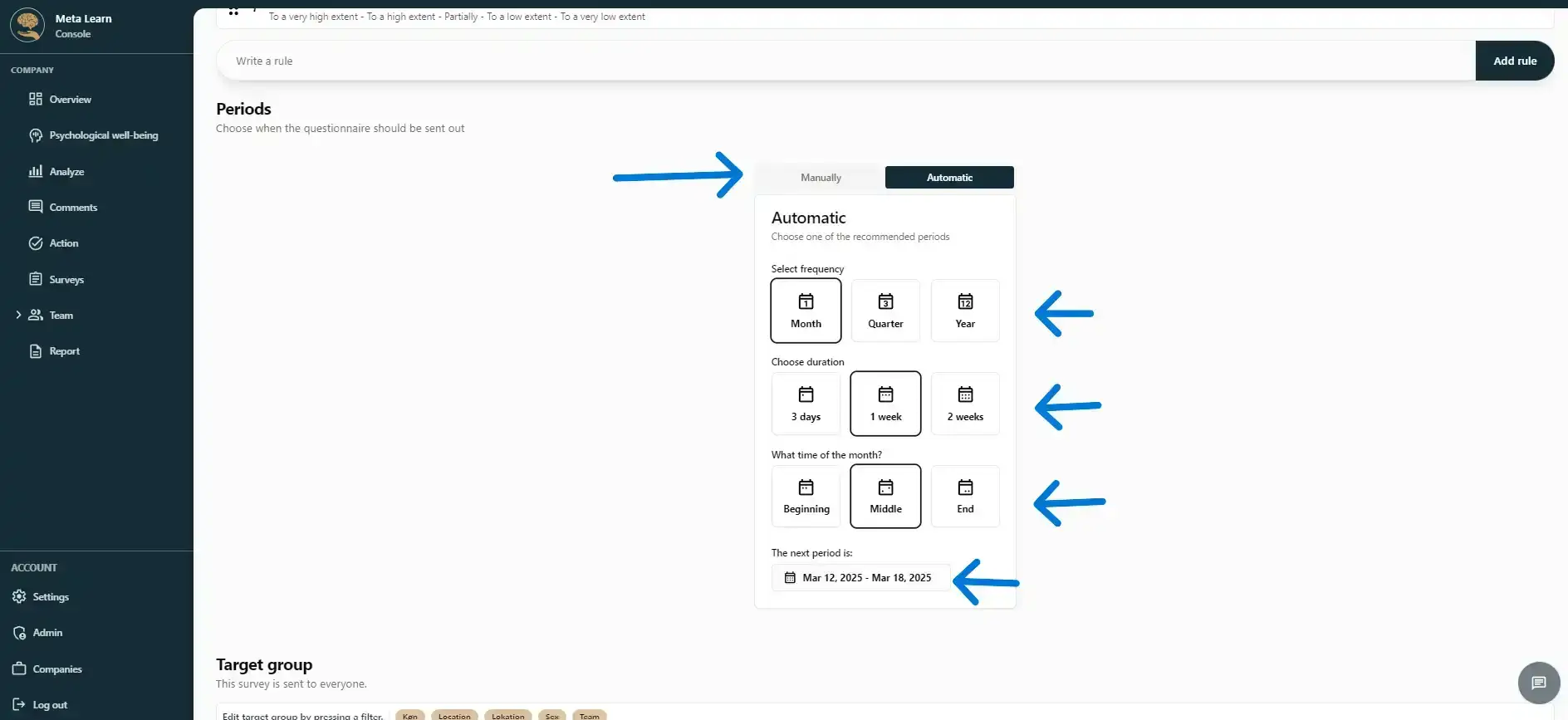
Choose when to send the survey now.
Below, you can see when the survey will be sent for the first time.
Step 15
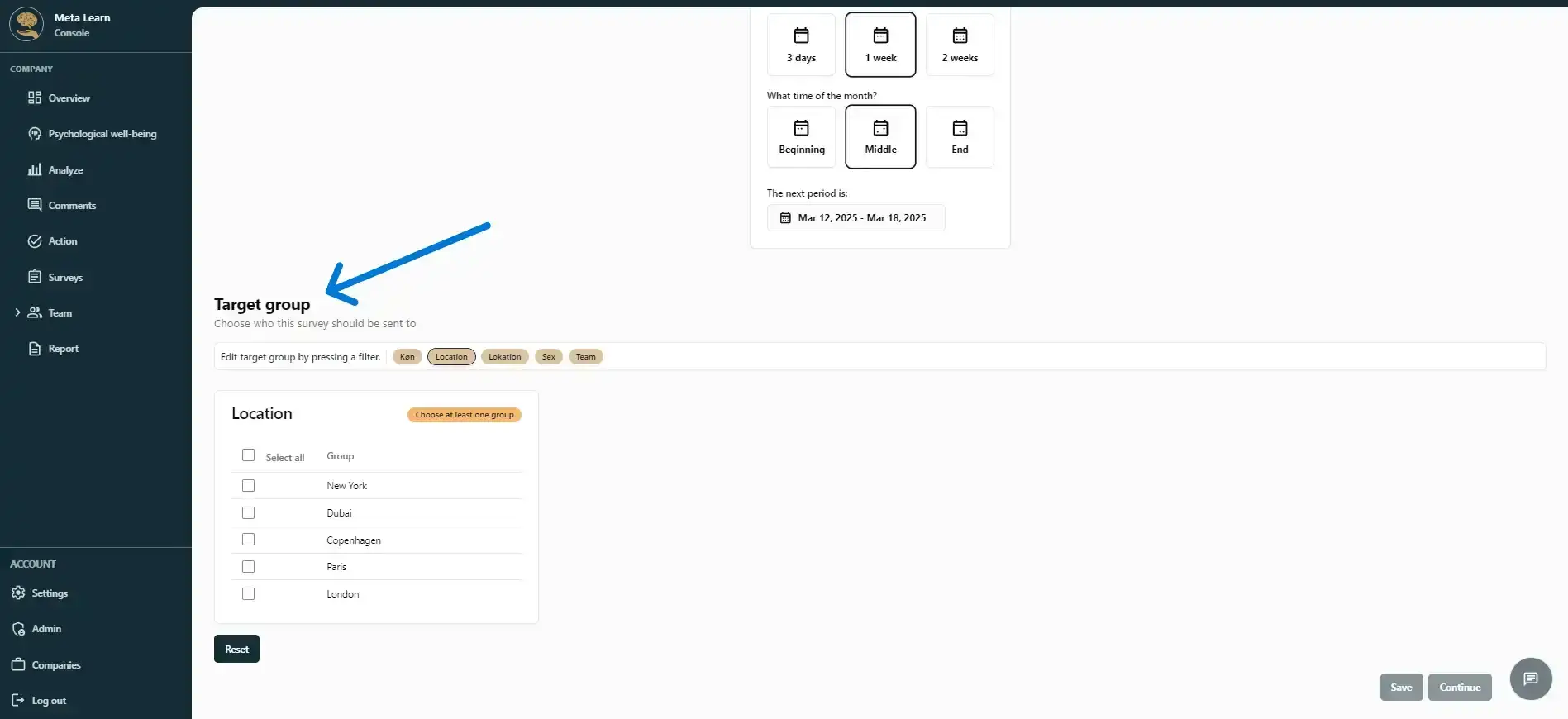
You can now choose whether only specific departments/teams should receive the survey. If you don’t select anything, the survey will be sent to all employees.
Step 16
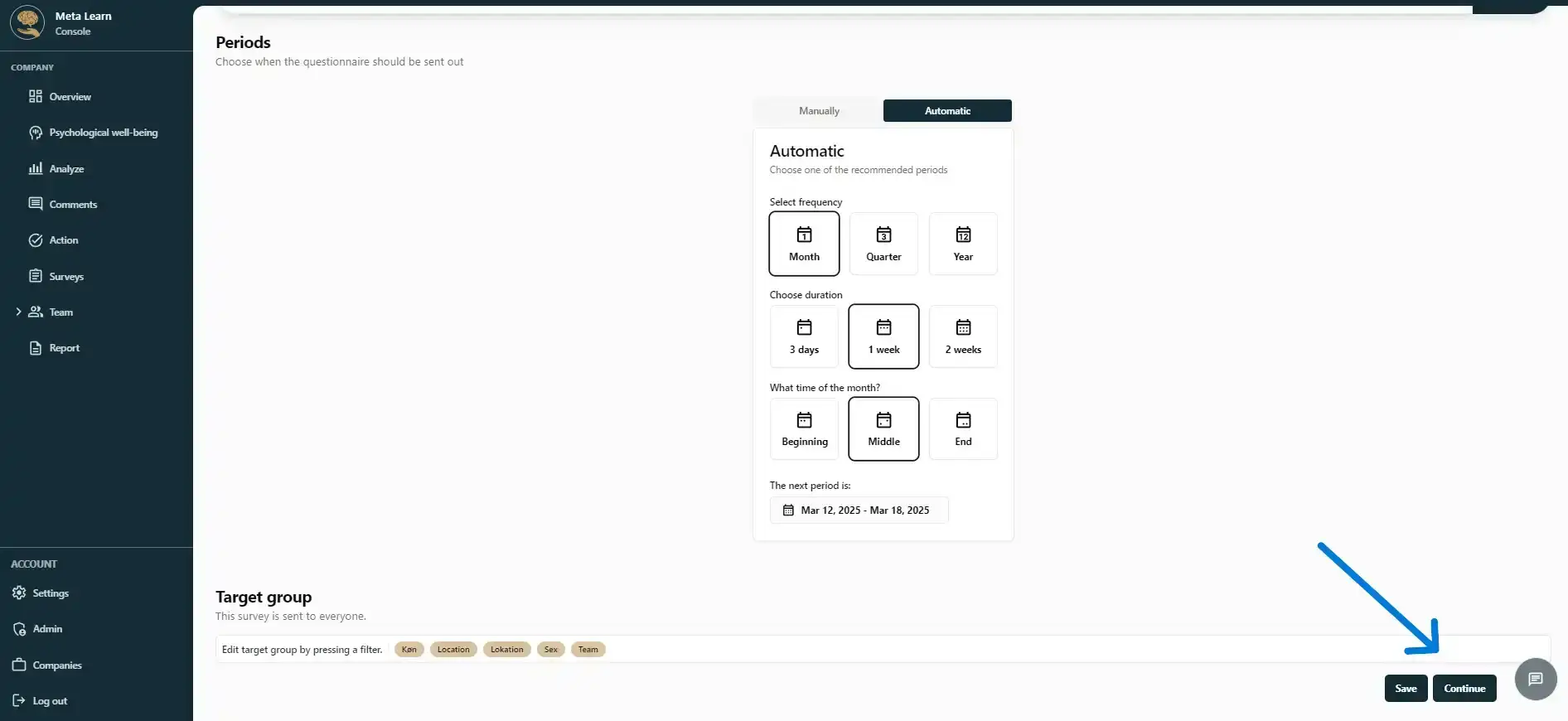
The survey is now complete! Click “Save and continue” to move on to the final step.
Step 17
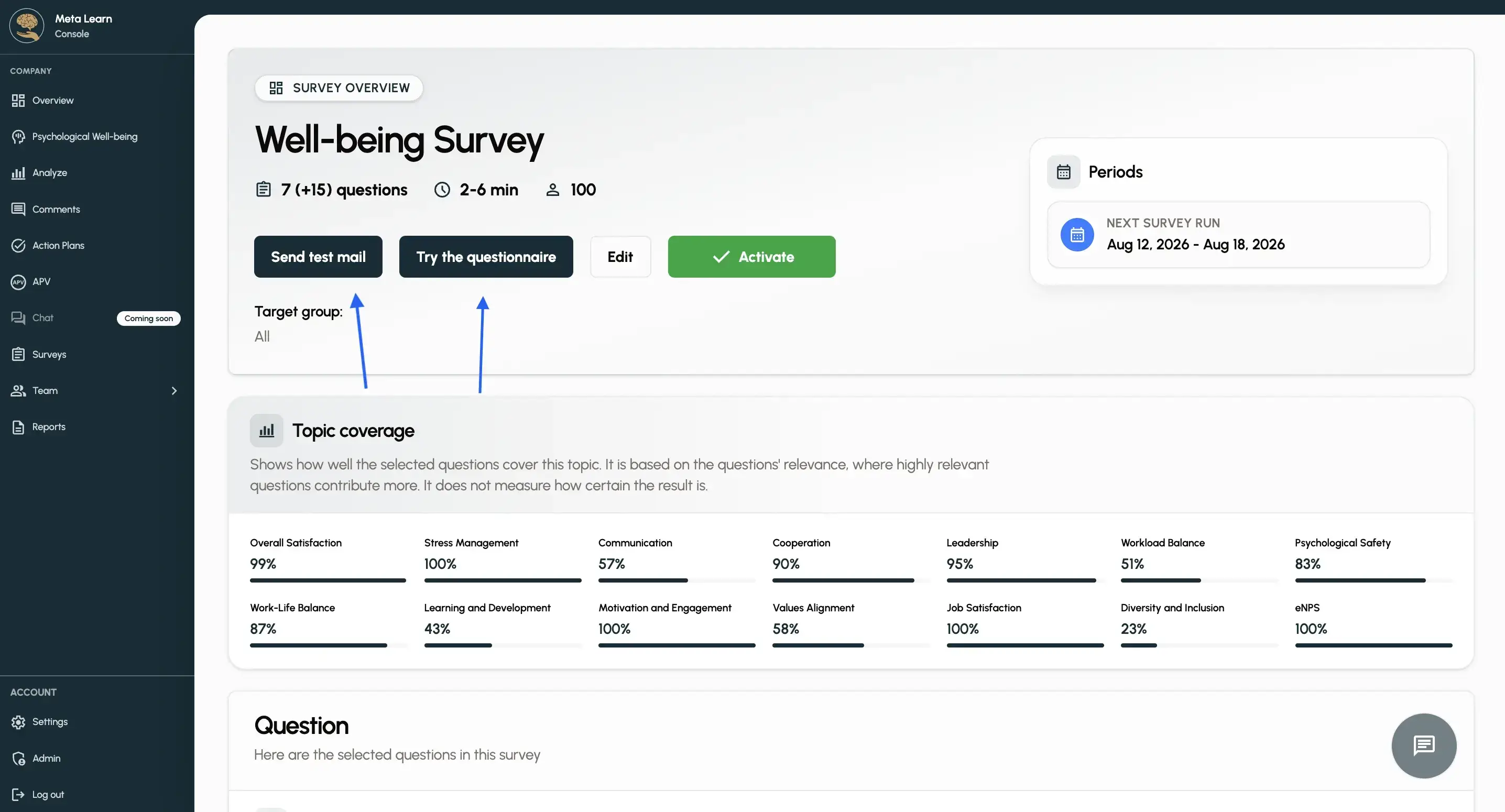
You can now review your assessment.
If you want to test the questionnaire before sending it to your employees, click “Try the questionnaire”.
Step 18
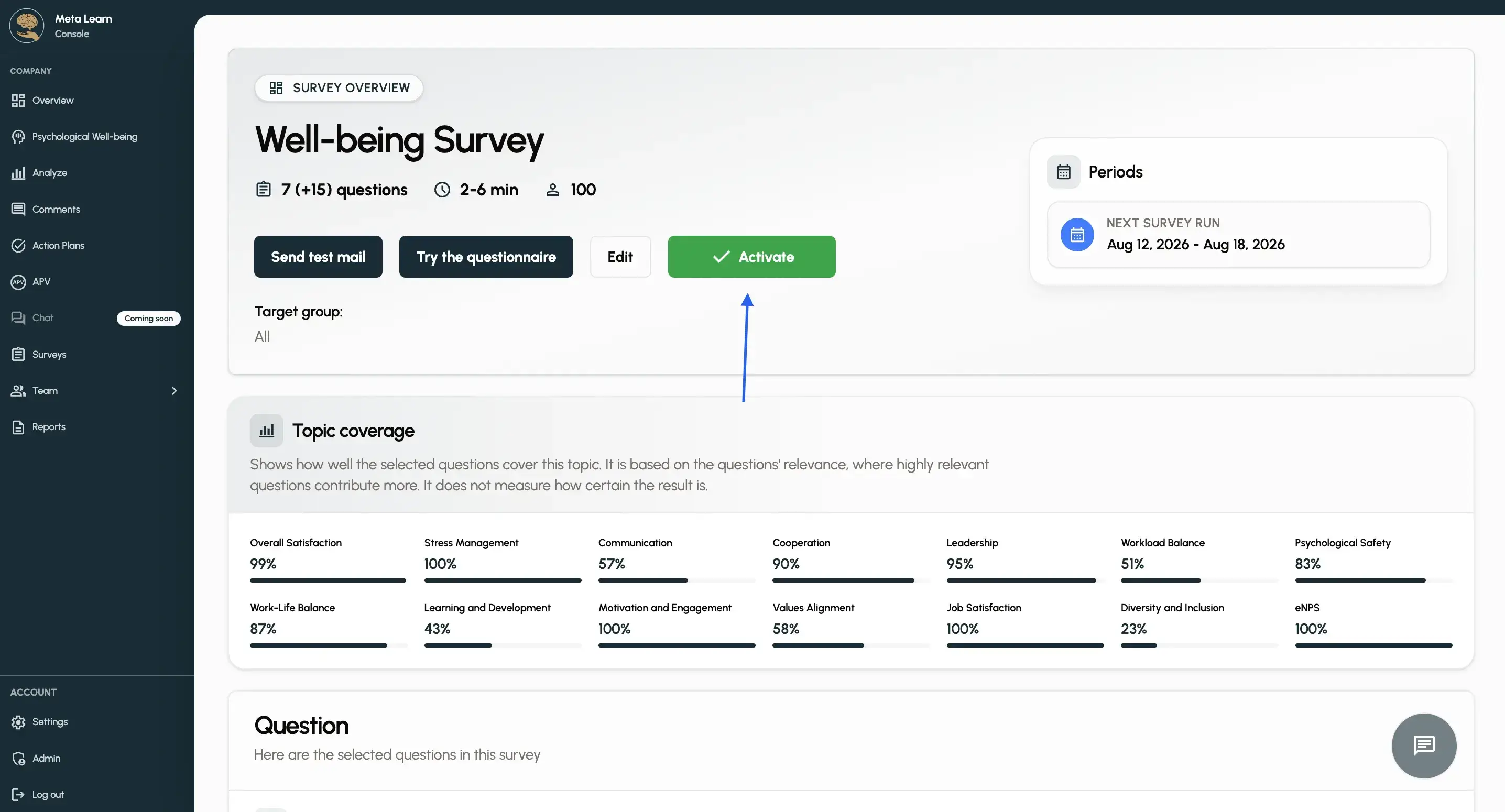
When the survey is ready, just click “Activate”, and it will be scheduled for the selected start date.
Congratulations!
You’ve successfully created and activated your survey. No further action is required.
Related guides
Survey Checker
Review your questionnaire and get help making sure the questions are ready to send.
View guideUnderstand psychological well-being
Learn how to use and interpret your employees’ well-being surveys, and see what you can do based on the results.
View guideNavigate the analysis
Learn how to use and navigate the analysis, and understand what the different metrics tell you.
View guide